MCP Server
The app can run an MCP (Model Context Protocol) server, which lets AI assistants and other MCP clients (e.g. Claude Desktop, Claude Code, Cursor) work with your workspace's data: finding parts, checking stock, going through BOMs, purchase orders or history, and, if you allow it, making changes.
Like the local API, the MCP server runs on your computer, not on the cloud. It uses the local API, so it follows the same rules: what the signed-in user's role allows, read-only access, and the plan. It's available on the plans that include the API (see pricing).
Starting it
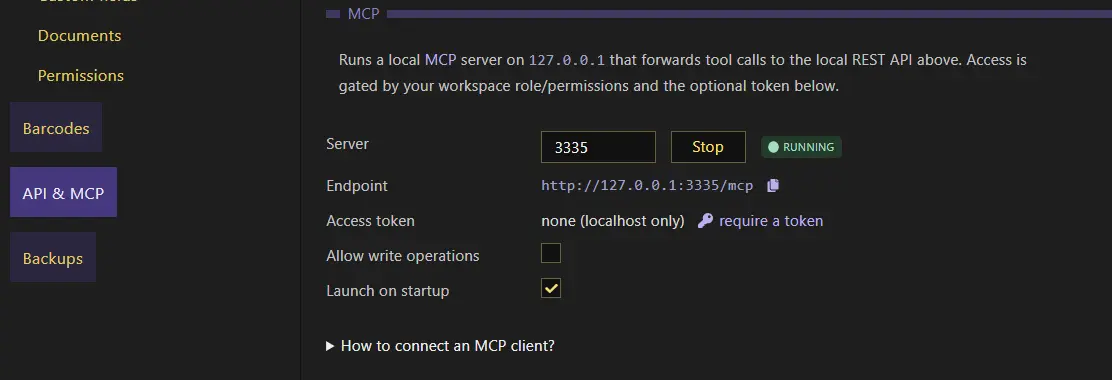
The MCP server is under Settings - API & MCP, below the API's settings:
- Port:
3335by default. It can only be changed while the server is stopped. - Start / Stop: starts or stops the server. Once it's running, it's listening at the Endpoint shown (e.g.
http://127.0.0.1:3335/mcp). - Access token: optional, none by default. See Access token.
- Allow write operations: off by default. See Read-only by default.
- Launch at startup: starts the server whenever the app opens a workspace.
You don't need to start the local API for the MCP server to work: it calls the API inside the app, without opening it to other programs. If you start the local API yourself, it's yours to use as usual.
The MCP server is only reachable from your computer (127.0.0.1). To make it reachable from elsewhere, see HTTPS-only clients or run it in CLI mode.
Changing a setting while the server is running restarts it, and connected clients may need to reconnect.
Connecting an MCP client
The app shows how to connect a client under How to connect an MCP client?, below the MCP server's settings. The app must be running, with the MCP server started, for a client to use it.
Claude Desktop (and other stdio clients)
Clients that start their MCP servers as programs (the stdio transport), such as Claude Desktop, use a small bridge that comes with the app. There's nothing else to install (not even Node.js): the bridge is run by the BOMIST executable itself.
Copy the configuration shown by the app (copy config) into the client's configuration file (in Claude Desktop: Settings - Developer - Edit Config, which opens claude_desktop_config.json) and restart the client. It looks like this, with the paths of your installation:
{
  "mcpServers": {
    "bomist": {
      "command": "C:\\Users\\you\\AppData\\Local\\Programs\\BOMIST\\BOMIST.exe",
      "args": [
        "C:\\Users\\you\\AppData\\Local\\Programs\\BOMIST\\resources\\mcp\\stdio-bridge.js"
      ],
      "env": {
        "ELECTRON_RUN_AS_NODE": "1",
        "BOMIST_MCP_URL": "http://127.0.0.1:3335/mcp"
      }
    }
  }
}
If the client already has other MCP servers, add bomist to its mcpServers instead of replacing them.
Copy it from the app rather than typing it: the paths depend on where the app is installed. Copy it again if you change the port or the access token, which is passed to the bridge as BOMIST_MCP_TOKEN.
HTTP clients
Clients that support MCP over HTTP (the Streamable HTTP transport) are pointed at the endpoint directly. With an access token, they must send it as an Authorization: Bearer <token> header. For example, with Claude Code:
claude mcp add --transport http bomist http://127.0.0.1:3335/mcp

# with an access token
claude mcp add --transport http bomist http://127.0.0.1:3335/mcp --header "Authorization: Bearer <token>"
HTTPS-only clients and other computers
Some clients only connect to https servers, or run somewhere else (e.g. on the web). For those, expose the MCP server through a tunnel (e.g. ngrok or cloudflared) and point the client at the tunnel's https URL, followed by /mcp.
Anyone who reaches the MCP server without needing a token uses your workspace as the signed-in user. Always set an access token before exposing it through a tunnel.
To serve the MCP server from a computer that doesn't need the app's window (e.g. a server), use CLI mode.
Access token
By default the MCP server doesn't ask its clients for a token (none (localhost only)), as it's only reachable from your computer. Click require a token to generate one: from then on, every client must send it as an Authorization: Bearer <token> header, and requests without it are refused.
The token is shown masked: use show to see it and the copy icon to copy it. To stop requiring one, remove it with the × icon. Generating or removing the token restarts the server if it's running, so update your clients' configuration afterwards.
Read-only by default
By default the MCP server is read-only: it can only read your workspace's data (including through the few requests that are sent as a POST but change nothing, such as checking for identical parts).
To let it make changes (create, edit or delete parts, inventory, purchase orders, etc.), enable Allow write operations. Only you can do this: an AI assistant using a read-only MCP server is told never to attempt a change, nor to allow writes itself, whether through the MCP server or any other way (e.g. a script calling the API), and to tell you what it would have changed instead. If it attempts one through the MCP server anyway, the change is refused before it reaches the API.
Even with writes allowed, changes follow the user's role: on Team Workspaces, a role whose access to the API is read-only (see Role-based Permissions) can still only read, and so can a workspace that is read-only in the app.
With writes allowed, an AI assistant changes your workspace as the signed-in user, just as if you did it in the app. Review what it's about to do, and keep backups.
Using it
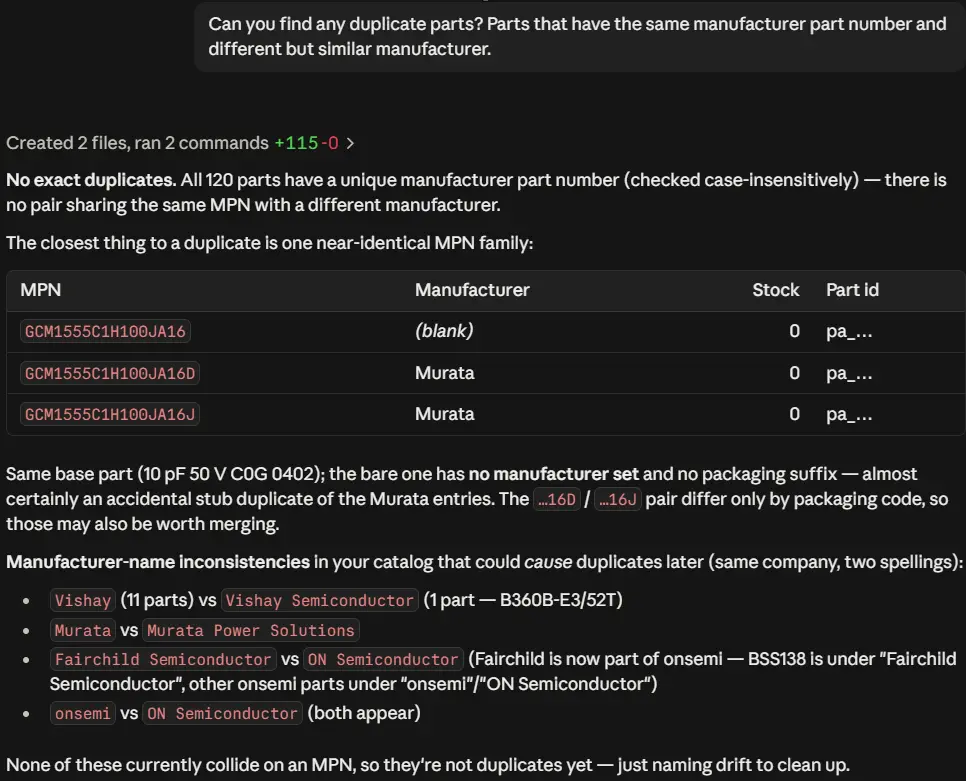
Once a client is connected, ask the AI assistant in your own words (e.g. "which parts are below their low stock?" or "what do I need to buy to build 50 units of this product?") and it finds what it needs in your workspace. Long answers are read in pages, so the assistant may make several requests for a single question.
Here's an example of it working with Claude Desktop:
What an AI assistant reads from your workspace becomes part of your conversation with it, and is sent to the assistant's provider like anything else you write there.
Troubleshooting
- The client can't connect: check that the app is running and the MCP server is started (its status shows
runninginSettings - API & MCP), and that the client uses the same port and access token as the app. - The MCP server doesn't start: another program may be using its port. Stop the server, change the port and start it again (then update your clients). The server isn't started either when the workspace needs a newer version of the app.
- Every request made by the MCP server is in the log files, marked as the MCP server's (e.g.
[local-api] GET /parts (MCP, read-only)), along with the changes it refused.