Stock Ops
Stock Ops (stock operations) let you list several changes to your stock and then make them all at once. They're found under Inventory > Stock Ops on the app menu.
There are two types of stock operations:
- Stock Adjustments: inventory to be added, adjusted or removed
- Pick Lists: inventory to be moved between storage locations
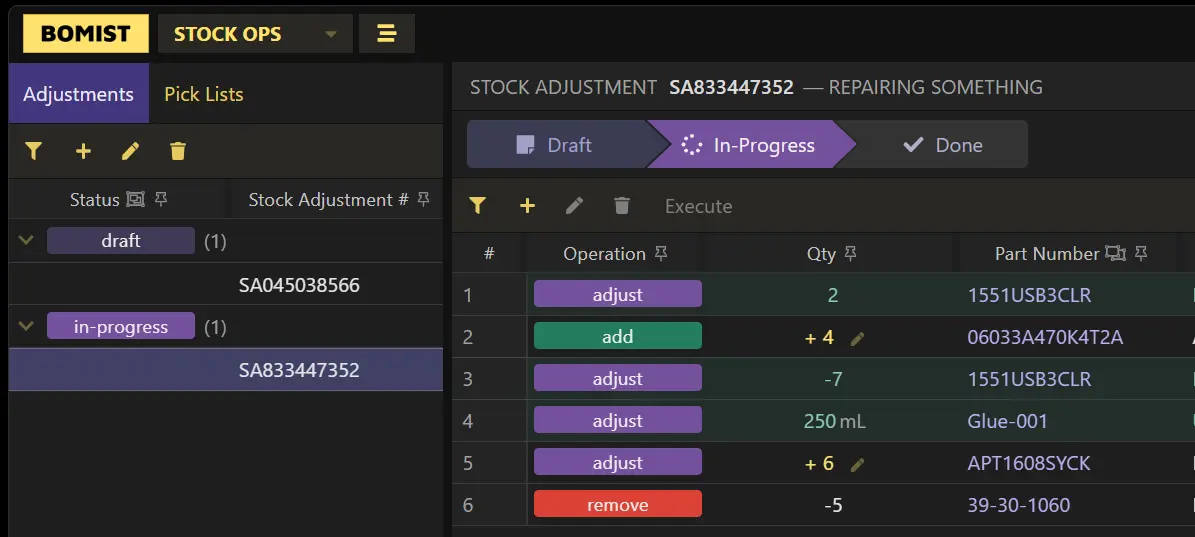
Both work the same way: you create a stock adjustment or a pick list, list the parts and quantities in it and, once ready, use Execute to actually make the changes to your inventory. Until then, nothing changes in your stock, so you can prepare them in advance, review them, or have someone else in the team execute them (see tasks).
Stock Adjustments
A stock adjustment lists inventory that needs to be added, adjusted or removed. This might be useful when:
- Doing a stock count and correcting what's on the app
- Doing repairs
- Listing production deviations, such as unused parts that go back in stock after production (e.g. leftovers from attrition), or extra parts that had to be consumed during production
Each item on a stock adjustment has an operation:
Add: adds a quantity of a part into a storage location. You can optionally enableTraceabilityto set the Rev, ID code and date code of the inventory being added.Adjust: increases or decreases the quantity of existing inventory.Remove: removes existing inventory altogether.
When adding or adjusting stock you can also enable Update unit cost, so the unit cost of the part is updated with the price of what's being added. A comment can also be added to each item, e.g. to explain why it's being adjusted.
Pick Lists
A pick list lists existing inventory (the source inventory) that has to be moved to another storage location (the destination), and in which quantity. Only part of an inventory's quantity can be moved, if needed.
A common use is kitting: adding the items of a production build to a pick list so their parts are moved from your storage into the production line's location.
Adding Items
Items can be added from the stock adjustment or pick list itself (Add item), or straight from other tables in the app through their Add to... menu:
- Parts can be added to a stock adjustment or to a pick list (in which case you'll pick the inventory to be moved afterwards)
- Inventory (from the inventory tables of parts, storage locations, contacts, etc.) can be added to a pick list
- Production build items can be added to a pick list
When you add items through Add to..., you can pick an existing stock adjustment or pick list, or create a new one.
Executing
Once everything is listed, select the items to execute (or all of them) and use Execute (on the table's actions or by right-clicking on it). Since only the selected items are executed, a long list can be executed in several steps (e.g. as items are actually picked).
Items are executed in the order they're listed, which you can change through Move rows up and Move rows down. This matters, for example, when an item moves inventory into a location and the next one moves it somewhere else.
Before executing, the app checks every item and flags the ones that have problems (e.g. their inventory has been removed or moved somewhere else in the meantime). Items that can't be executed are skipped and you're told which ones and why, instead of being executed incorrectly.
Executed items can be reverted through Revert..., as long as the inventory they changed is still there.
Status
Stock adjustments and pick lists have a status: Draft, In-Progress or Done. The status can be changed when editing them. On the Dashboard, the stock adjustments and pick lists that aren't done yet show up on their own sections.
Permissions
On Team Workspaces, managing stock adjustments requires the Can add/adjust/remove permission of Inventory, while pick lists require Can move.